Data Import Templates - Fileset Tab
The fileset tab allows you to define the template (file) set rules, manage the process order, and add a process schedule for the template.
Note: Your file set processing rules should be applied to the final template, not the sub templates.
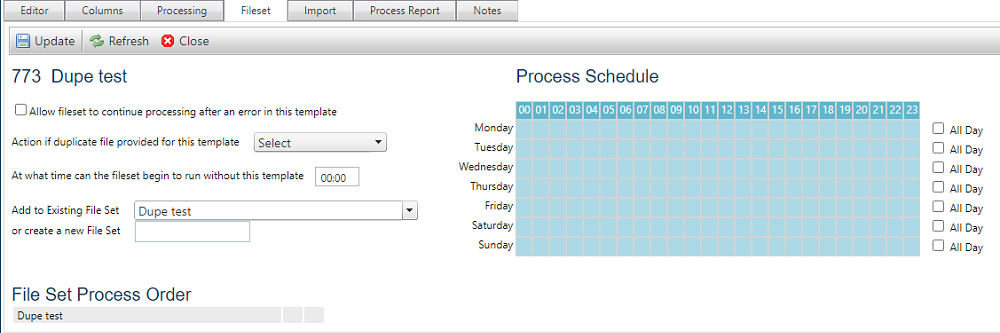
File set rules
Define rules for your template set and click update to save changes.
-
To allow a file set to continue processing after an error in the template, tick the checkbox in the rules list.
-
Use the dropdown to select an action for Unify to take if a duplicate file is provided.
-
To allow time for all files to be uploaded, select a time for Unify to wait until before processing the file set, e.g. set the time to 11:30 if you want the system to wait until 11:30 in the morning before ignoring the file, if it is missing, and processing the rest of the set.
-
Use the add to existing file set dropdown to add your template to an existing file set. Clicking the update button after selecting a file set will show all other templates within the selected set in the file set process order table.
File set process order
When a template is added to a file set, those templates will run in the order in which they were added. To change the process order:
-
Click the up arrow to move the template up one position in the running order.
-
Click the down arrow to move the template down one position in the running order.
Process schedule
By default, data import templates are set to process at any time. You can optimize the process by assigning blackout periods where templates are not processed.
-
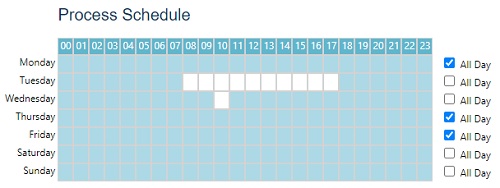
Select periods by clicking on a square in the day/time table, e.g. to prevent a template running during working hours on a Monday or between 10:00 and 11:00 on a Tuesday, click those squares.
-
To quickly blackout an entire day, select the all day checkbox (all boxes in that row will turn blue if not already), then uncheck the box.